
Overview
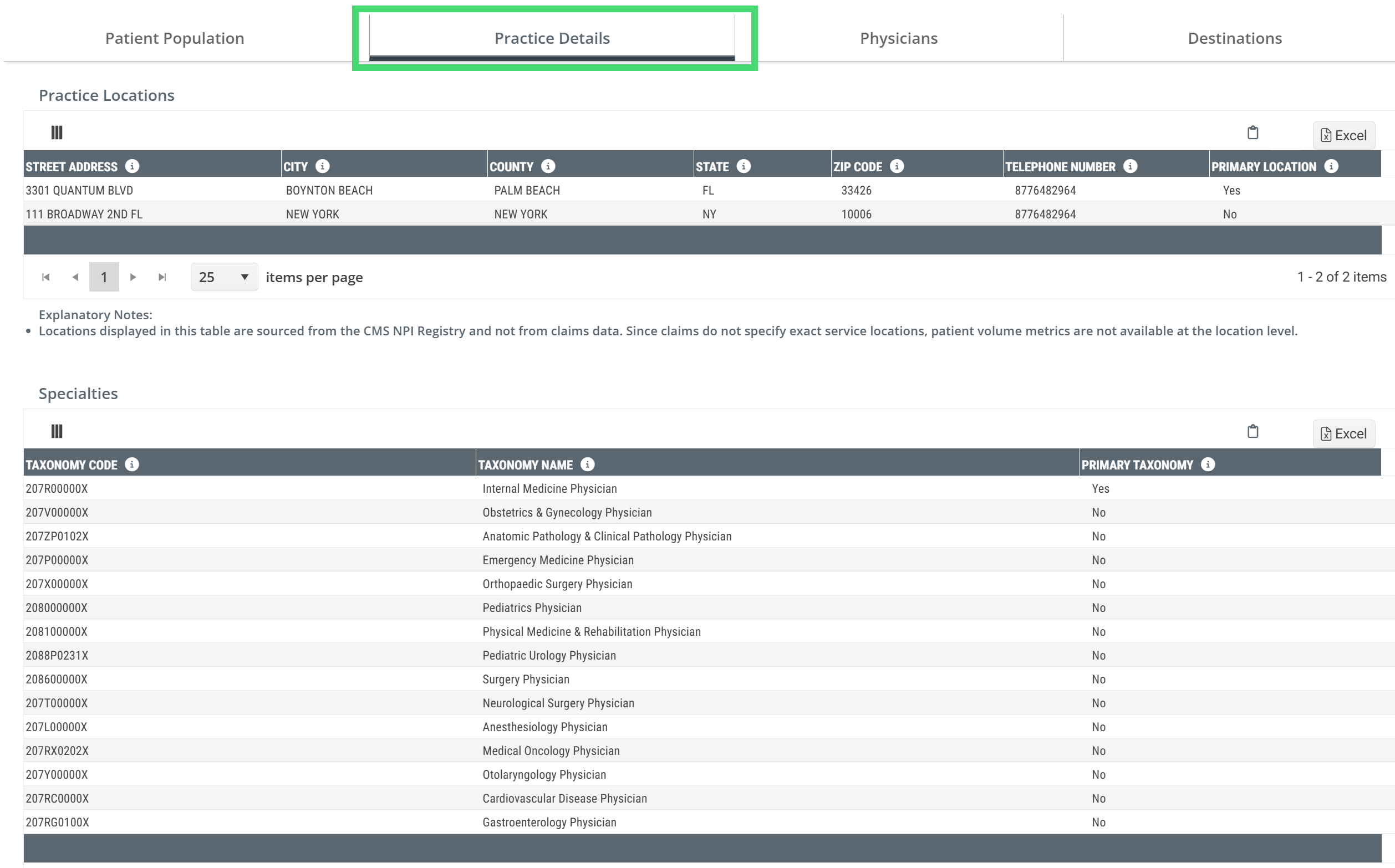
The Practice Details tab on the Physician Group Analyze page shows the practice structure of the selected physician group — where the group's locations are registered and which specialties the group's physicians hold. The tab has two tables: Practice Locations and Specialties.
 Let's get Oriented
This tab shows the structural side of the selected physician group — where its practice locations are registered and which specialties its physicians hold, drawn from the CMS NPI Registry. To get here: in any Trella Insights product, open the Physician Groups Explore page, click a group's name to open its Analyze page, then click the Practice Details tab.
In this article
 Scroll through the article to learn about both tables, or use the links below to navigate directly.
Practice Locations
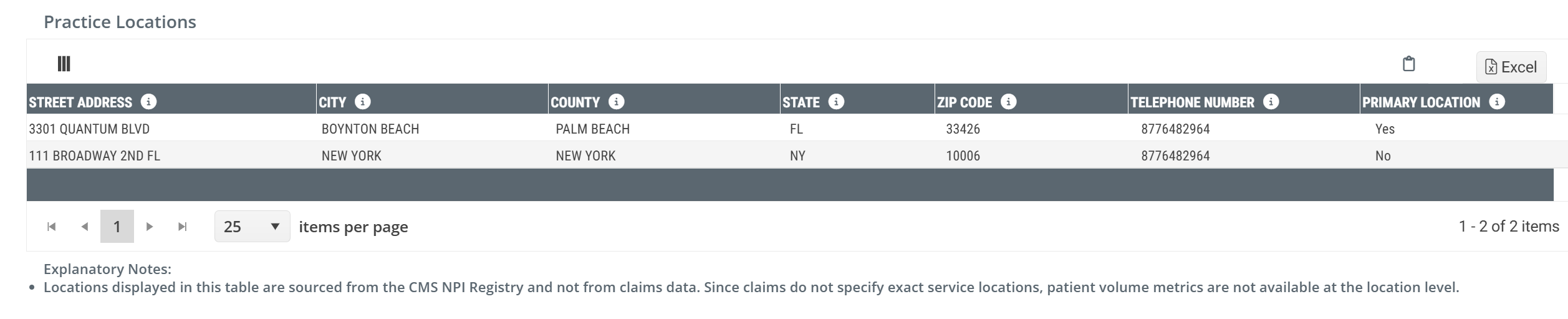
The Practice Locations table lists every practice location registered to the selected physician group in the CMS NPI Registry. For groups with multiple locations, each address appears as a separate row with the Primary Location column identifying which address is the group's primary registered location.
 Locations in this table are sourced from the CMS NPI Registry — not from claims data. Since claims do not specify exact service locations, patient volume metrics are not available at the location level.
 For more information about NPI Registry data, see Using the NPPES NPI Database Search.
Understanding the Metrics
| Metric | Description |
| Street Address | The street address of the practice location as registered in the NPPES NPI Registry. |
| City | The city of the practice location. |
| County | The county of the practice location. |
| State | The state of the practice location. |
| ZIP Code | The ZIP code of the practice location. |
| Telephone Number | The telephone number for this practice location as registered in the NPPES NPI Registry. |
| Primary Location |
Yes indicates this is the primary practice location for the physician group. No indicates an additional registered location.
|
 |
Specialties
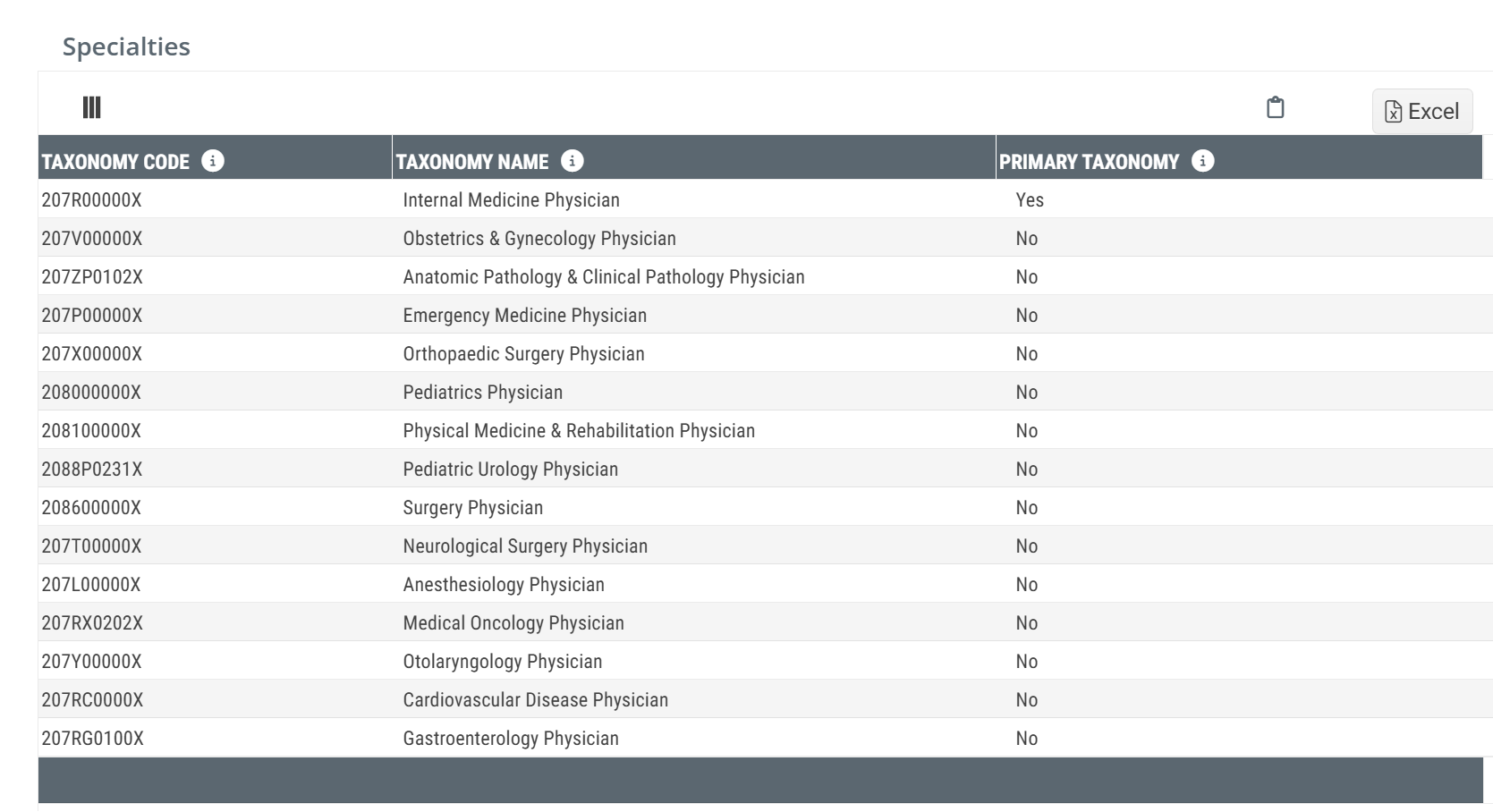
The Specialties table lists every taxonomy code registered to the selected physician group in the NPPES NPI Registry. Physician groups often hold multiple taxonomies — one for the group's primary specialty and additional ones reflecting the range of specialties practiced by physicians in the group.
Understanding the Metrics
| Metric | Description |
| Taxonomy Code | The NUCC Health Care Provider Taxonomy code for the specialty, as registered in the NPPES NPI Registry. |
| Taxonomy Name | The full name of the taxonomy — the specialty classification and provider designation (for example: Internal Medicine Physician, Nurse Practitioner). |
| Primary Taxonomy |
Yes indicates this is the primary taxonomy for the physician group. No indicates a secondary taxonomy.
|
|
 Putting the Data to Work
Know where the group practices before you plan outreach. The Practice Locations table shows every registered address — not just the primary one. A group with locations in three counties may have different sales rep coverage needs than a single-location practice. Check whether all locations fall within your territory before you commit resources.
Use specialty mix to calibrate your message. The Specialties table tells you whether the group is a single-specialty practice or a multi-specialty group. A group with Internal Medicine as its primary taxonomy and Cardiovascular Disease as a secondary is a different conversation than a purely primary care group. Lead with the clinical context that's most relevant to the specialties present.
Cross-reference taxonomy with patient volume. If the group's primary taxonomy doesn't match the specialty of its highest-volume referring physicians (visible on the Physicians tab), the group's NPI Registry registration may be outdated. That's useful intelligence — it means the group is evolving, and your outreach should reflect what the practice actually looks like today, not what it was when the NPI was registered.
|